Xiaomi Recovery Mode is created for restore of Mi, REDMI, POCO smartphones and operating system update.
It allows not only to install the firmware on the phone, but also to return the device to the working condition after the failure, resetting the phone to the factory settings.
What is Recovery Mode and Recovery ROM
Recovery Mode on Xiaomi, REDMI and POCO is a special mode of system recovery, through which you can install the firmware or restore your smartphone to a working state, if it does not boot.
There are two types of Recovery Mode:
- Official (stock) — this recovery is pre-installed on all Xiaomi smartphones, Mi, REDMI, POCO. It contains only the basic functions. It can be downloaded from our website and we will talk about it further in the text.
- Unofficial (custom) — this is a recovers from third-party developers with enhanced capabilities for flashing the smartphone, installing patches and modifications. It is often understood as TWRP custom recovers. To work with the custom recovers you need to have certain skills.
To work with the device in Recovery Mode, it is recommended to have at least 60% battery level. If the smartphone runs out of power during the update, all the data may be lost.
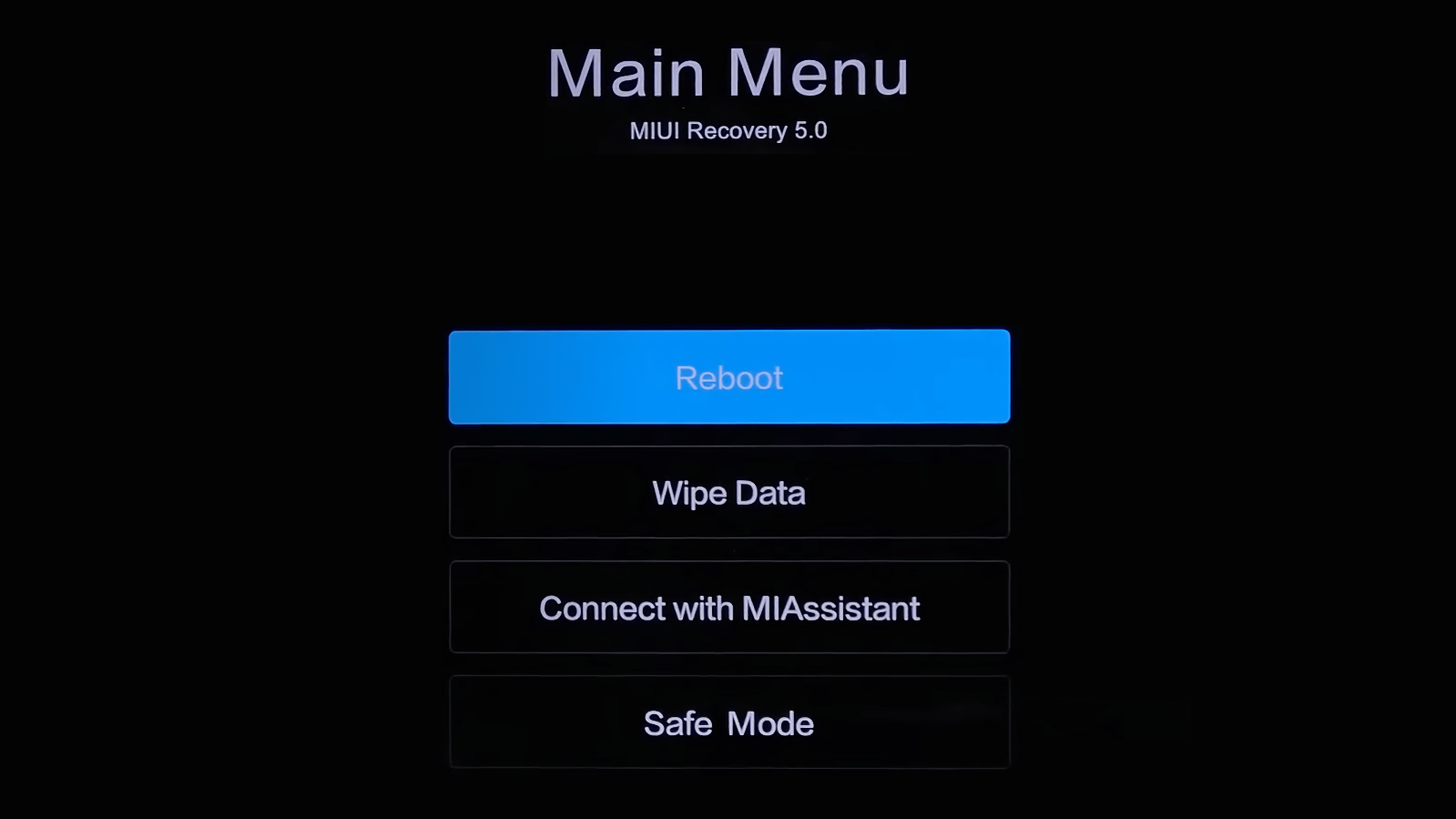
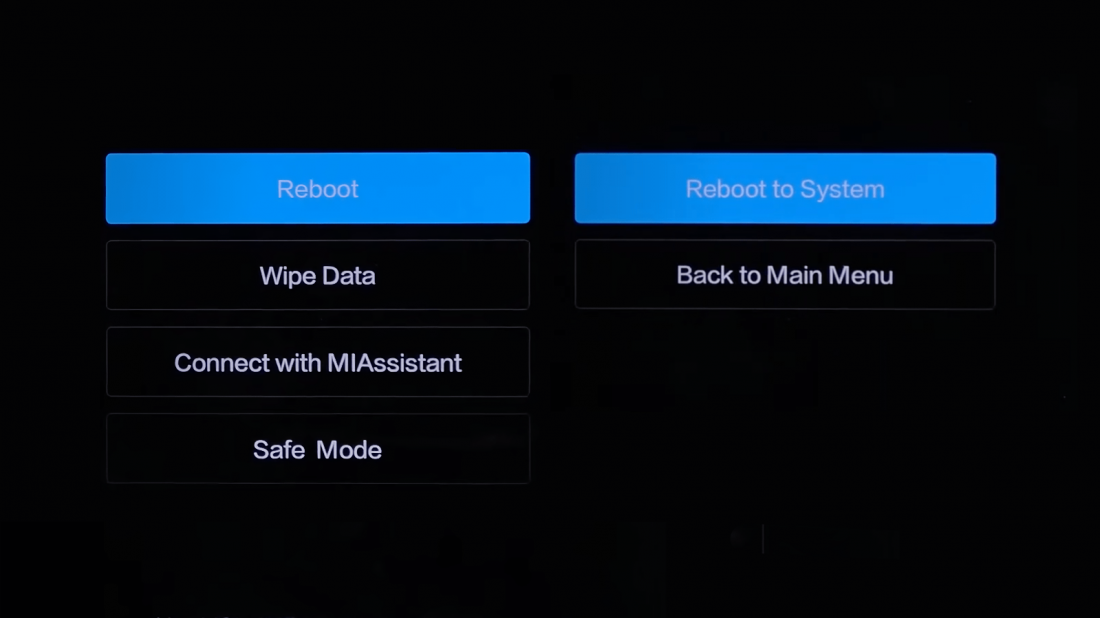
The menu of the official stock Recovery Xiaomi, Mi, REDMI, POCO has a multi-level structure. You can navigate through it with the volume buttons. To select the desired menu item, press the power button.
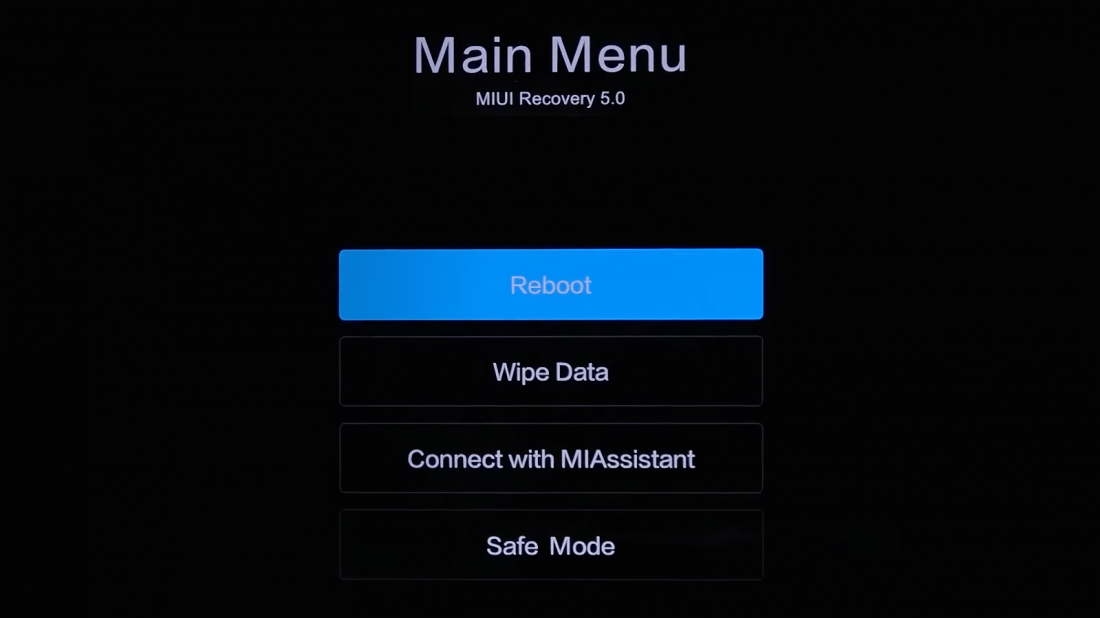
Recovery Menu structure is the same for HyperOS and MIUI:
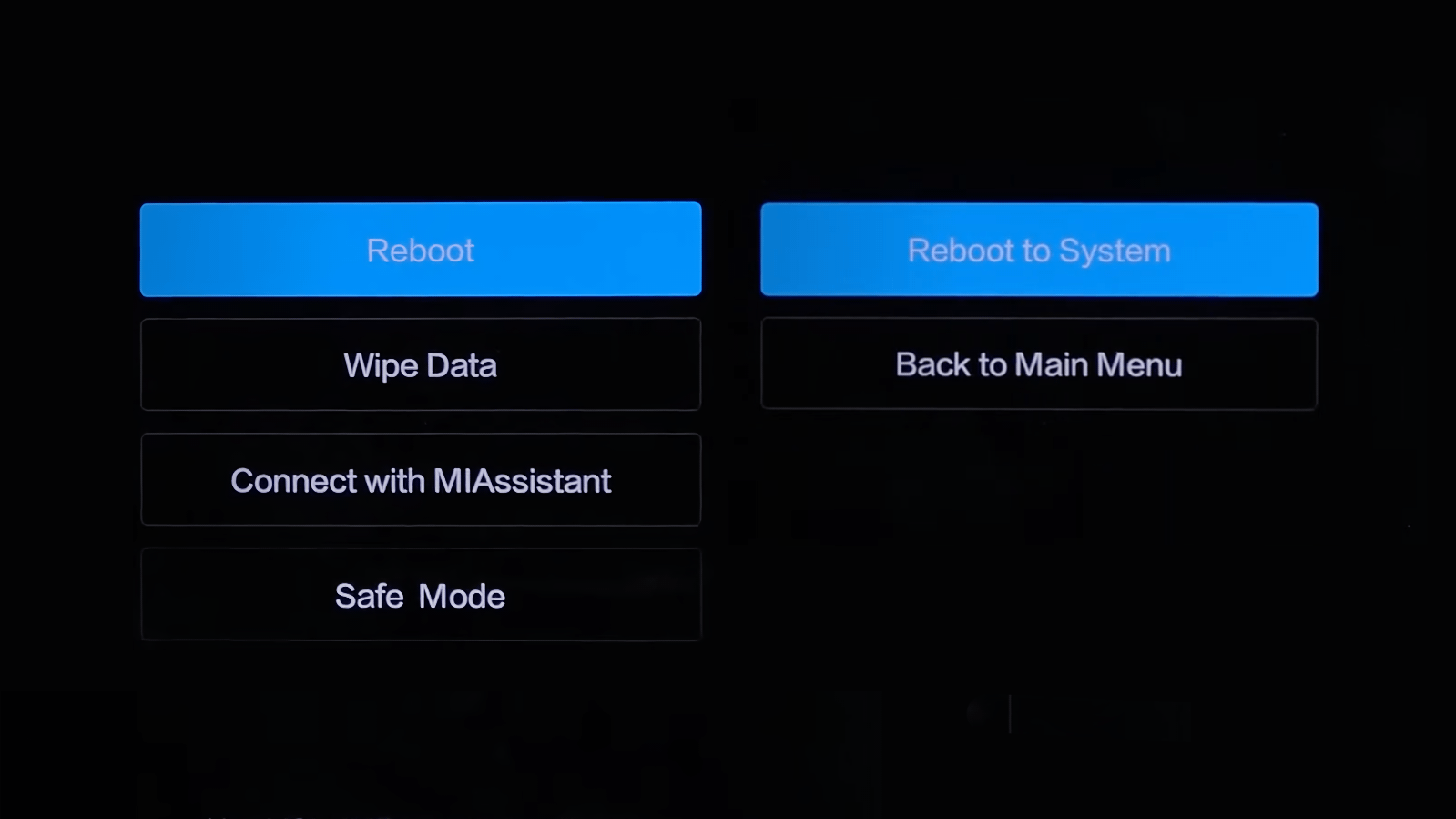
- Reboot — reboot menu offers two options: Reboot to System (normal reboot in HyperOS or MIUI, data is not deleted) and Back to Main Menu.
- Wipe Data — used to reset to factory settings. All your files will be deleted from the phone: photos, videos, music and apps. Wipe All Data will delete all data and Back to Main Menu will return you to the home screen.
- Connect with MI Assistant — connects your device to your PC to restore your operating system. You need a USB cable, Mi Flash Pro installed on your PC and the downloaded firmware file.
- Safe Mode — put your device in diagnostic mode to troubleshoot software errors. After rebooting, only system programs are loaded and all third-party programs are disabled. This feature is not available in some versions of Recovery Menu.
Some versions of MIUI 14 and HyperOS use a limited Recovery menu where the “Wipe Data” option is missing. This is due to the device’s active protection: if Mi Account and “Find Device” are enabled, the system blocks reset via Recovery to prevent unauthorized access.
In such cases, to perform a factory reset or restore the device’s functionality, you must use Mi PC Suite or flash the firmware via Fastboot. After that, you’ll need to enter the login and password for the linked Mi Account; otherwise, the device will remain locked.
We have understood what Recovery Mode is. Now let’s look at what ROM is.
Recovery ROM — is the firmware intended for updating HyperOS/MIUI with the help of the stock recovery mode on Xiaomi. The firmware is available for download as a ZIP file, just like the OTA update. You can download the official version for your device from https://miuifirm.com/
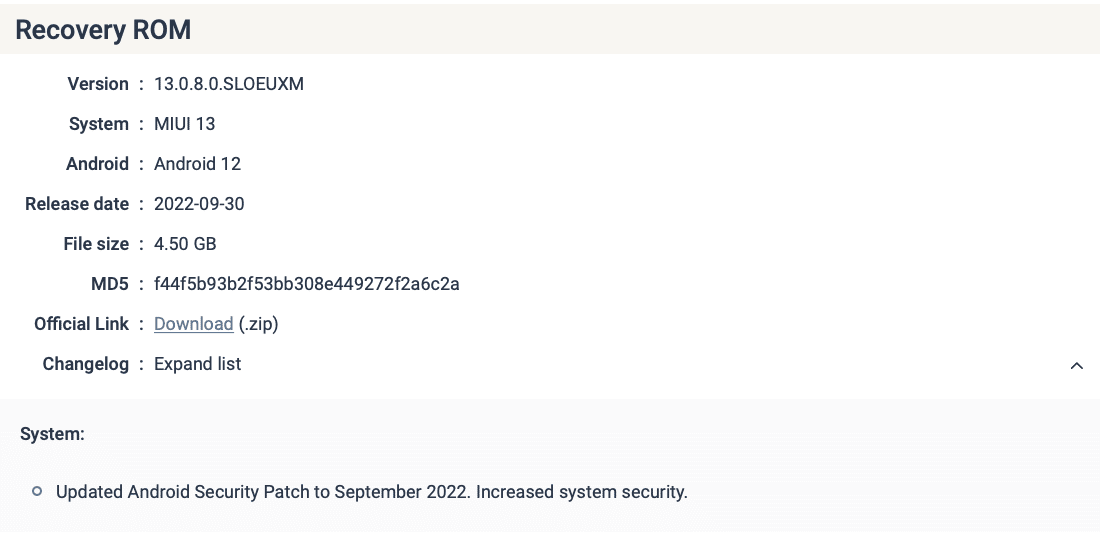
What’s the difference between Recovery ROM and OTA
The main difference is that an OTA update is not a firmware version but just an update. OTA only contains the necessary files for upgrading your HyperOS or MIUI. Recovery ROM is a full-fledged firmware.
The difference between OTA and Recovery ROM:
- ROM does not arrive “by air”, the firmware can only be downloaded. The OTA can be downloaded or installed “over the air”.
- Installation of the ROM is possible only via the stock recovery mode of the phone – Recovery Mode. It’s much easier to download and install OTA.
- ZIP file with ROM takes much more space because it contains full fledged firmware for your smartphone. The OTA ZIP file is much smaller because it only includes the files needed to update.
- ROM is installed on any version of HyperOS/MIUI. Each OTA update is released for a specific version.
- OTAs only come in official versions. Recoveries can be custom, i.e. from third-party developers. Our website miuirom.org only allows you to download official Xiaomi firmware, we do not have any custom firmwares.
In case you get stuck or the phone doesn’t boot up correctly after installing the firmware update (OTA), you can use our Recovery Menu to perform a factory reset or install the firmware through ROM.



Installing the firmware through the recovery without a PC
To update the firmware via recovery without using a computer, the HyperOS or MIUI version in Recovery ROM needs to be higher than the installed version, as in the new Xiaomi smartphones the developers have blocked the possibility to downgrade the system version.
When installing the firmware through the stock recovery, the user data is not deleted, but there is a possibility of losing it due to an accidental error during the installation process. Make a Xiaomi backup data in advance!
How to install Recovery ROM on Xiaomi, Mi, REDMI and POCO in recovery mode:
- Select your phone or tablet model in the catalog with firmware and download ROM in ZIP format for the desired region.
- Rename the file to Update.zip (if its name is different).
- Move the Update.zip file to the root of your microSD card.
- Press the power, volume up, and volume down buttons at the same time (when the phone is on).
If the file is correct, the update will start right away. After the firmware is installed, the phone will reboot and go to HyperOS/MIUI automatically. User files and applications will remain in the internal memory.
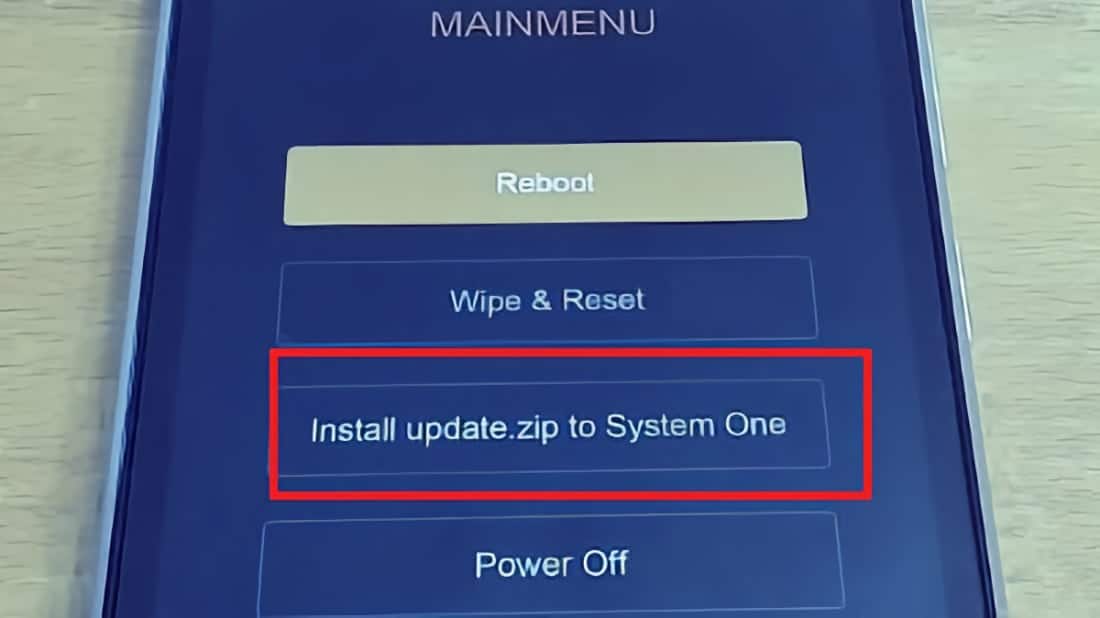
For older versions of stock recovery you should additionally select Install update.zip to System One in the menu (there will be no update.zip unless you rename the file to update.zip). After installation, you need to exit Recovery Mode and boot into HyperOS (MIUI).
Installing Recovery ROM via PC
You can update your Xiaomi, REDMI or POCO phone using a USB cable without unlocking the device. The method is also suitable for upgrading beta firmware to stable ROM and vice versa.
How to install Recovery ROM on Xiaomi via PC:
- Download the new ROM file for your smartphone or tablet.
- Connect your device to a Windows PC or laptop via USB cable .
- Copy the firmware file downloaded_rom folder to the internal storage of your device.
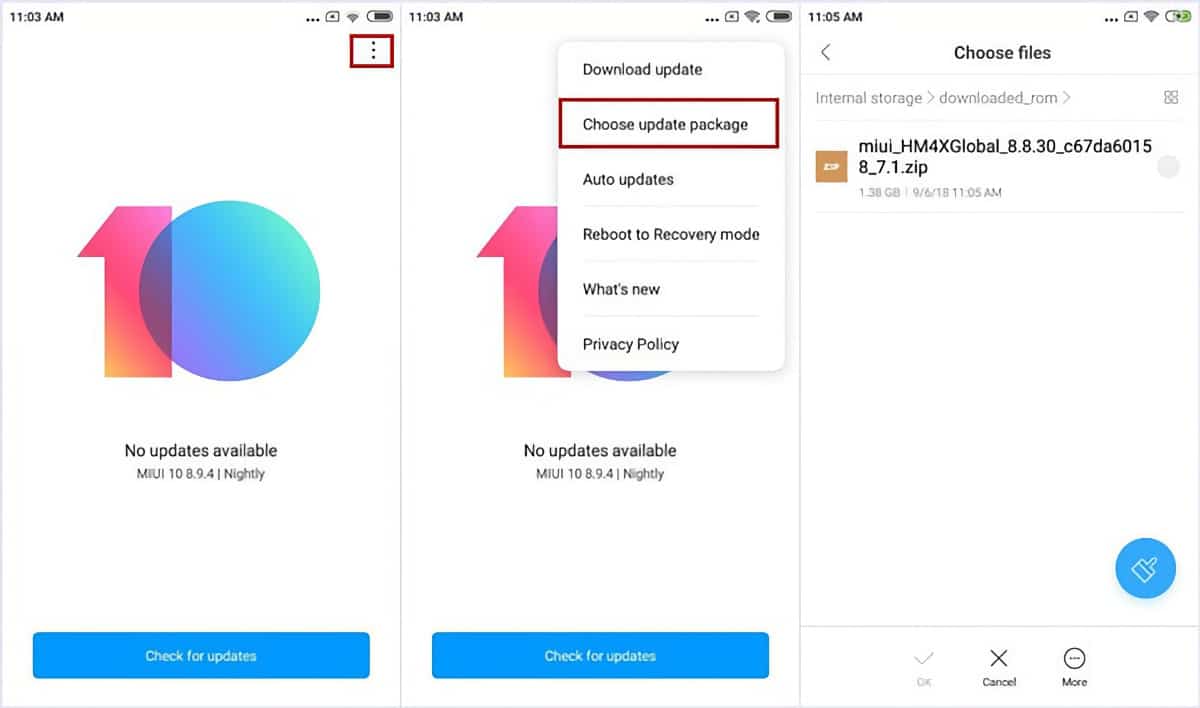
- Launch the Settings application on your device, select About phone → System update.
- Press the Three Dots icon in the top right corner and press Choose update package.
- Select the firmware file you copied to the downloaded_rom folder.
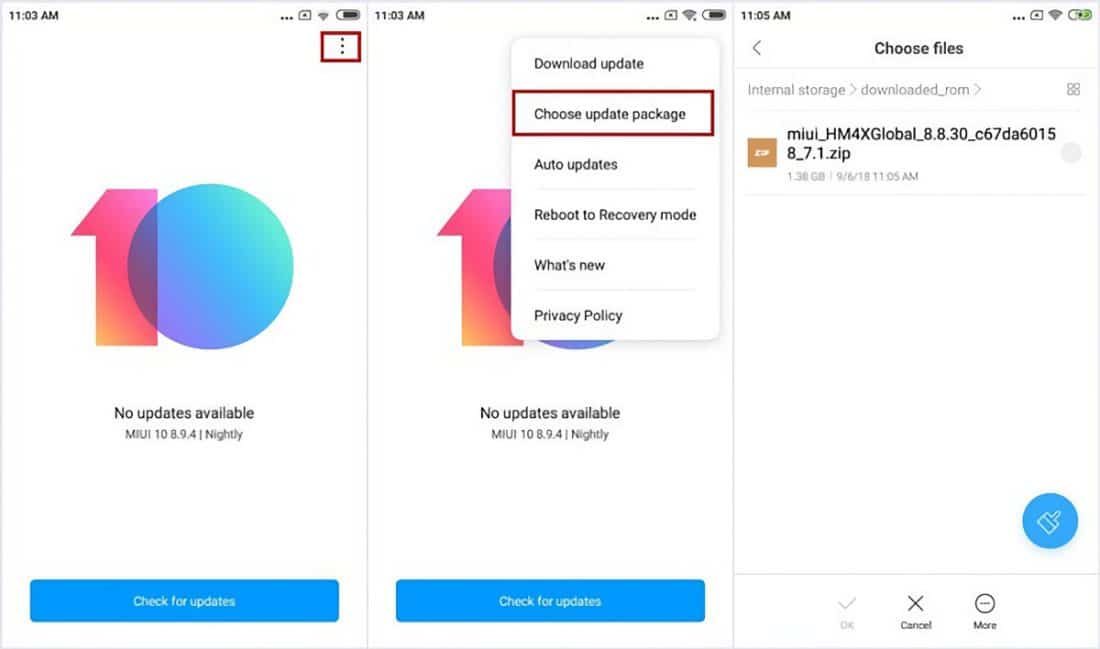
The Choose update package option may be hidden. To enable it, tap the MIUI logo multiple times in the update section or enable Developer mode.
After selecting the ROM file, the phone/tablet will start the update.
How to enter Recovery Mode
As you can see, you don’t have to enter the Recovery Menu to install the ROM. However, if you want to reset your Xiaomi phone to factory settings or have entered the recovery menu by accident, read on.
How to unlock Xiaomi recovery mode:
- Turn off your smartphone.
- Press the power and volume up buttons.
- Hold them down until the Android logo appears on the screen.
- After about 10 seconds, the Recovery menu will appear on the screen.
MIUI 11 allows you to enter Recovery mode from the system settings. To do this, launch the Settings app, go to “About phone” → “System update“, tap the three dots in the upper right corner of the screen and select “Reboot to Recovery mode“. Starting with MIUI 12, this menu is not available at the initiative of Xiaomi developers.
How to exit the Recovery Menu:
- Select Reboot → Reboot to System from the main menu. The smartphone will reboot to the familiar interface.
- Alternatively, press and hold the power button on your smartphone. It will turn off, then turn on and start loading HyperOS or MIUI.
Hard Reset via recovery
Warning: All your data will be deleted after the reset! Make a backup copy.
How to hard reset your phone via recovery to factory settings:
- Hold down the power and volume up buttons to enter recovery mode.
- Choose Wipe Data → Wipe All Data → Confirm.
- The device reset process will start and the message Data wiped successfully will appear once it has finished.
- Return to the main menu Recovery → Reboot → Reboot to System. First boot up after resetting the phone to the recovery may take about 5 minutes.