OTA is an official device update that automatically arrives via mobile Internet or Wi-Fi connection. The abbreviation comes from “Over the Air”. This is an analogue of FOTA (Firmware Over The Air).
Not every version of Xiaomi, REDMI, POCO firmware gets OTA. Sometimes developers release updates only for installation via Recovery or Fastboot. When installing manually, please pay attention to the HyperOS or MIUI version you are using OTA for. It won’t install on any other version because the OTA is not a full-fledged firmware, but just an update for a specific version.

A ready-made OTA update is released in stages for individual regions and users – usually taking about a month. Not everyone gets update at once. This is done to ensure that Xiaomi’s download servers run smoothly and to identify critical bugs not noticed during the testing phase.
If you don’t want to wait your turn, you know — MIUI & HyperOS OTA update can be installed manually. To do this, you need to download the official OTA update for your smartphone or tablet.
When you install the update package, your user data will be saved, but there is always the risk of losing it due to an accidental error. Make a Mi backup copy beforehand!
There are 3 ways to install the OTA update on your phone: automatic, via “three dots” and manual installation.
Manual OTA update installation
Although the OTA update arrives on Xiaomi, REDMI, POCO smartphones automatically, it is done in stages over several weeks. You may wait for your turn for a long time or not wait at all. For example, HyperOS or MIUI update does not come with an unlocked bootloader or active superuser rights.
For manual installation you need to download the official OTA update from miuirom.org and install it. When selecting the ZIP file, look at the firmware version for which the OTA is intended. It won’t install on any other version because OTA is not the firmware, it’s just an update package for a specific HyperOS & MIUI version.



How to install OTA update manually:
- Choose your model in the ROM catalog for phones or tablets, download the OTA update for it.
- Move the ZIP file to your smartphone’s memory.
- Open the settings, go to About phone.
- Select the HyperOS version or MIUI version tile.
- Tap the button with three dots.
- Tap Choose update package.
- Select the downloaded ZIP file and click OK.
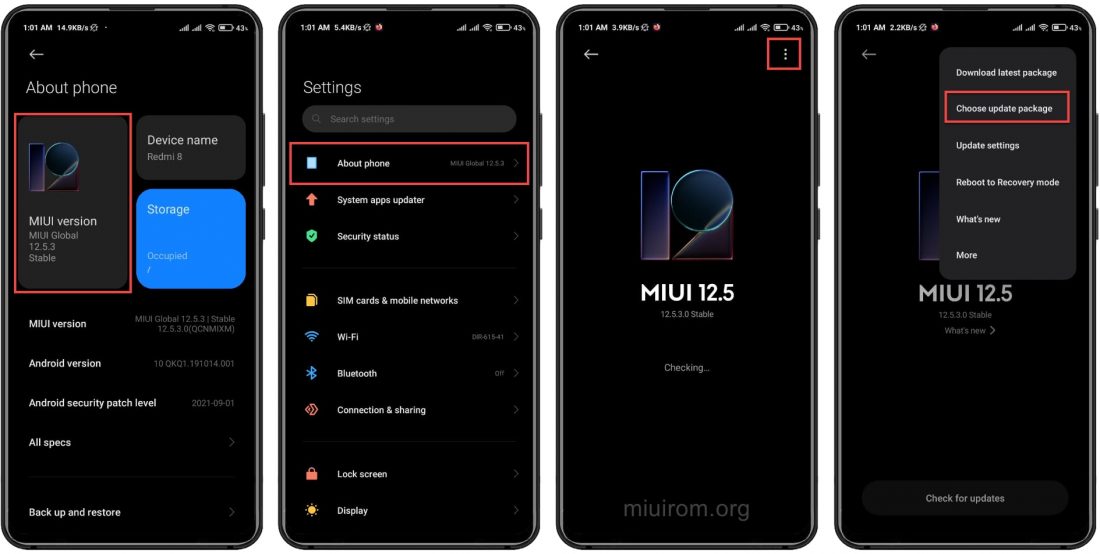
OTA installation will start automatically. The phone will reboot during the process.
If you do not have the “Choose update package” option, you need to activate developer mode. To do this, go to Settings → About phone → tap the HyperOS version or MIUI version field 7-8 times.
Installing OTA update via Three Dots
How to install OTA update via three dots:
- After launching the settings, go to About phone.
- Click on the HyperOS version or MIUI version tile.
- On the top right side, tap the button with three dots.
- A menu will appear where you need to select Download latest package.

The download of the package and its decoding will start. After that the smartphone will reboot and the full firmware will be installed during the restart.
Installing OTA update automatically
How to install OTA update automatically:
- Start your smartphone settings and go to the About Phone section.
- Tap the HyperOS version or MIUI version tile.
- Tap Check for updates.
- Tap the Update button.
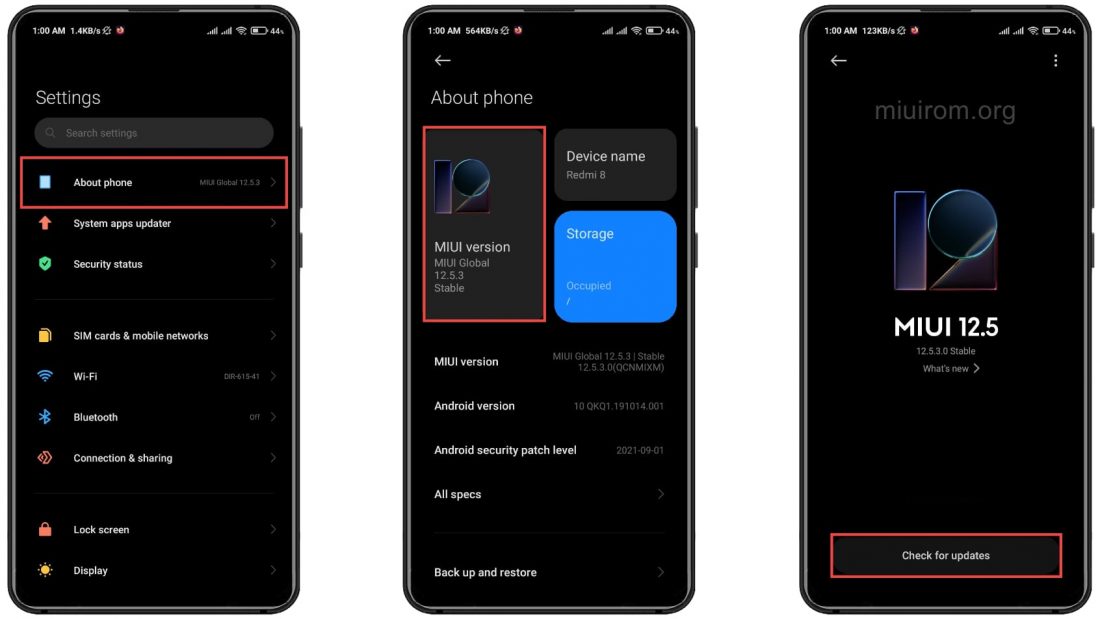
The “Update” button will only be active if HyperOS/MIUI update is available for your smartphone Xiaomi, REDMI, POCO. If there is no update available, the button will not be available. In this case, download the OTA and install it manually.